
Courtroom Asssistant
-
Welcome to the NexLaw Knowledge Help Center - Courtroom Assistant Section
Getting Started: Launching Courtroom Assistant
-
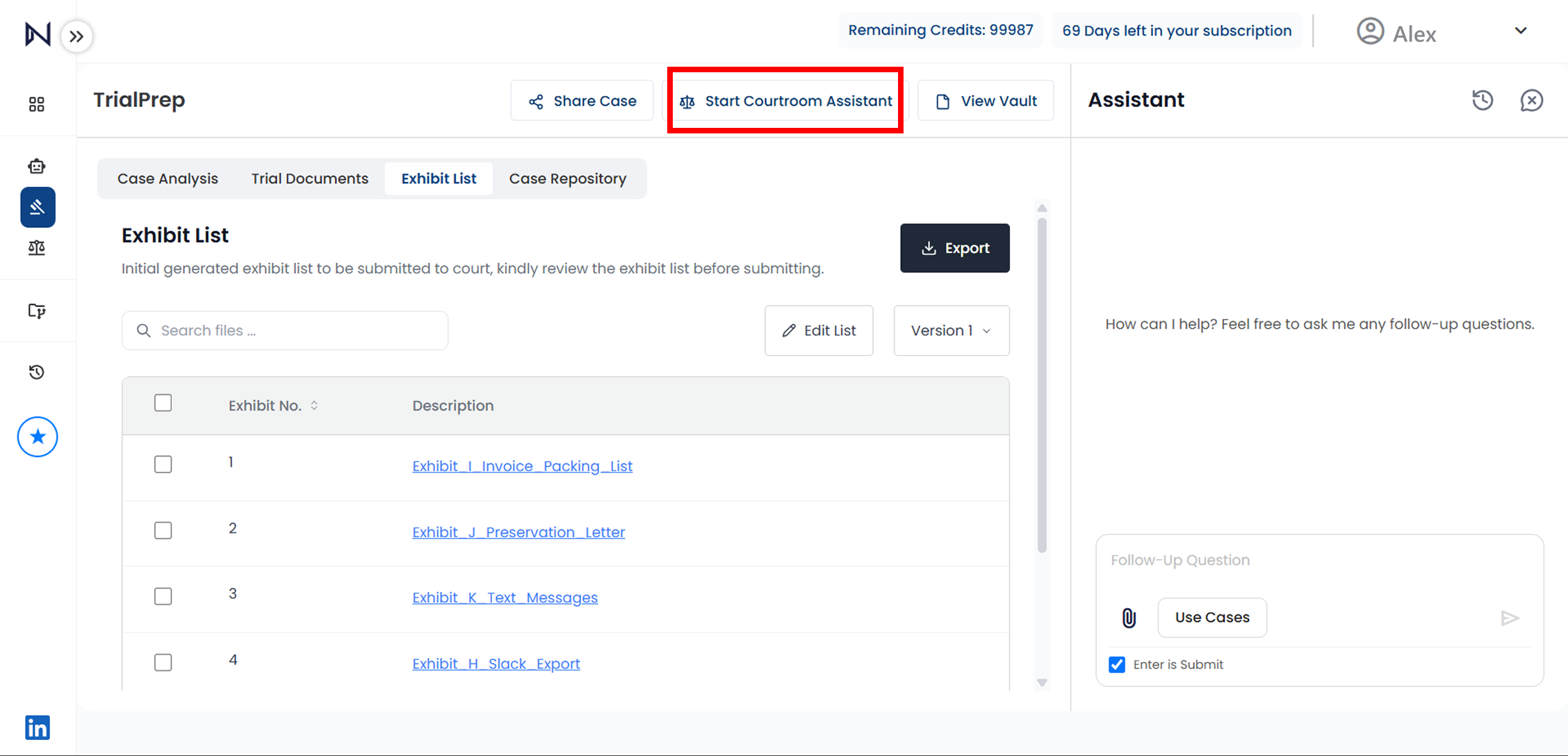
Navigating from TrialPrep
- • You will need an active TrialPrep to access courtroom assistant.
- • Select the button “Start Courtroom Assistant”.
-
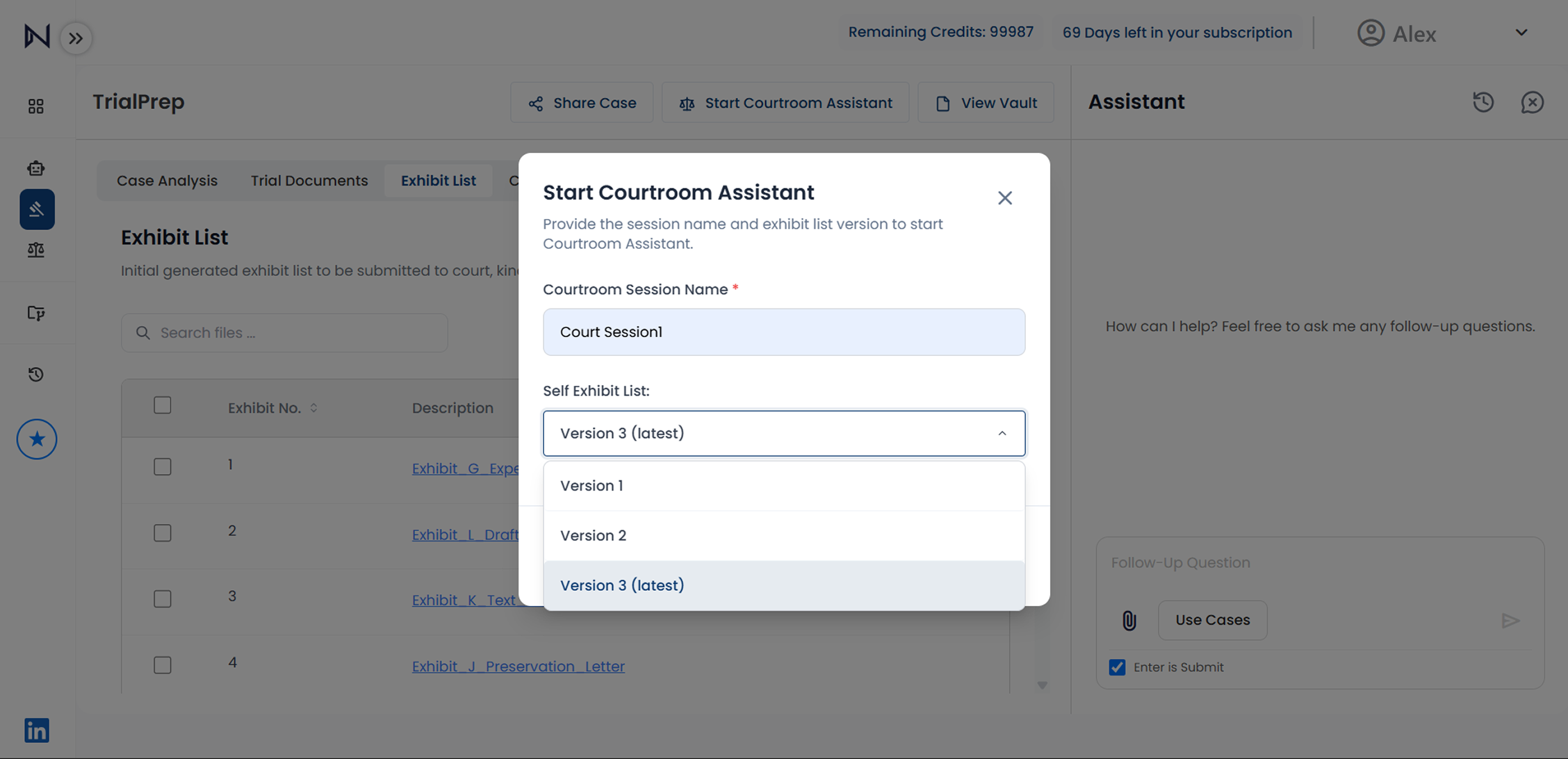
Entering details for the Assistant
- • Give the session a name (E.g. Court Session1).
- • Choose the exhibit list you want to bring into the session.
- • Courtroom Assistant will reference all selected exhibits, witness statements, and related materials when generating in-court arguments.
-
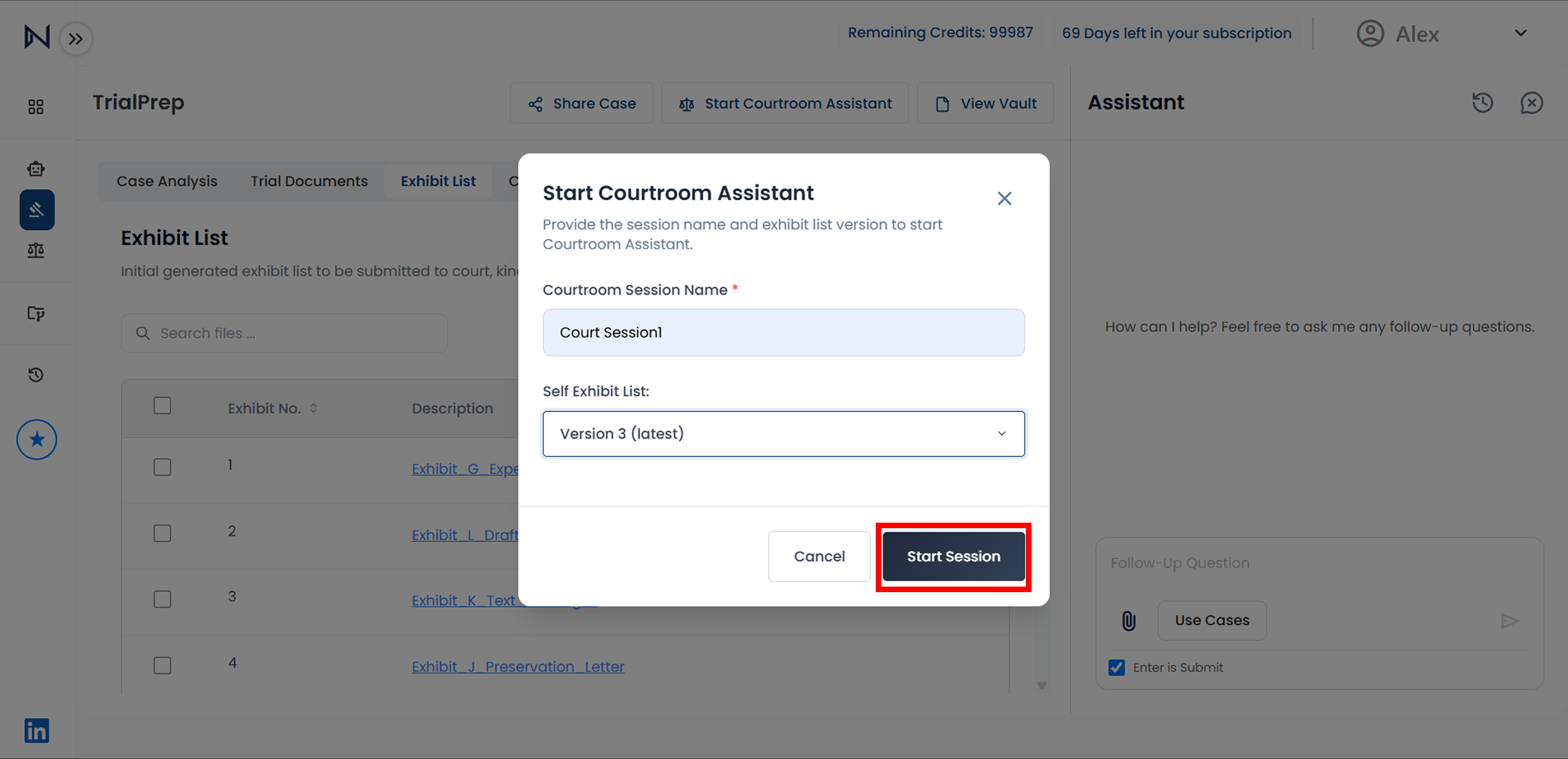
Creating Courtroom Assistant Session
- • Select “Start Session”.
In-Court Use: Engaging with Courtroom Assistant
-
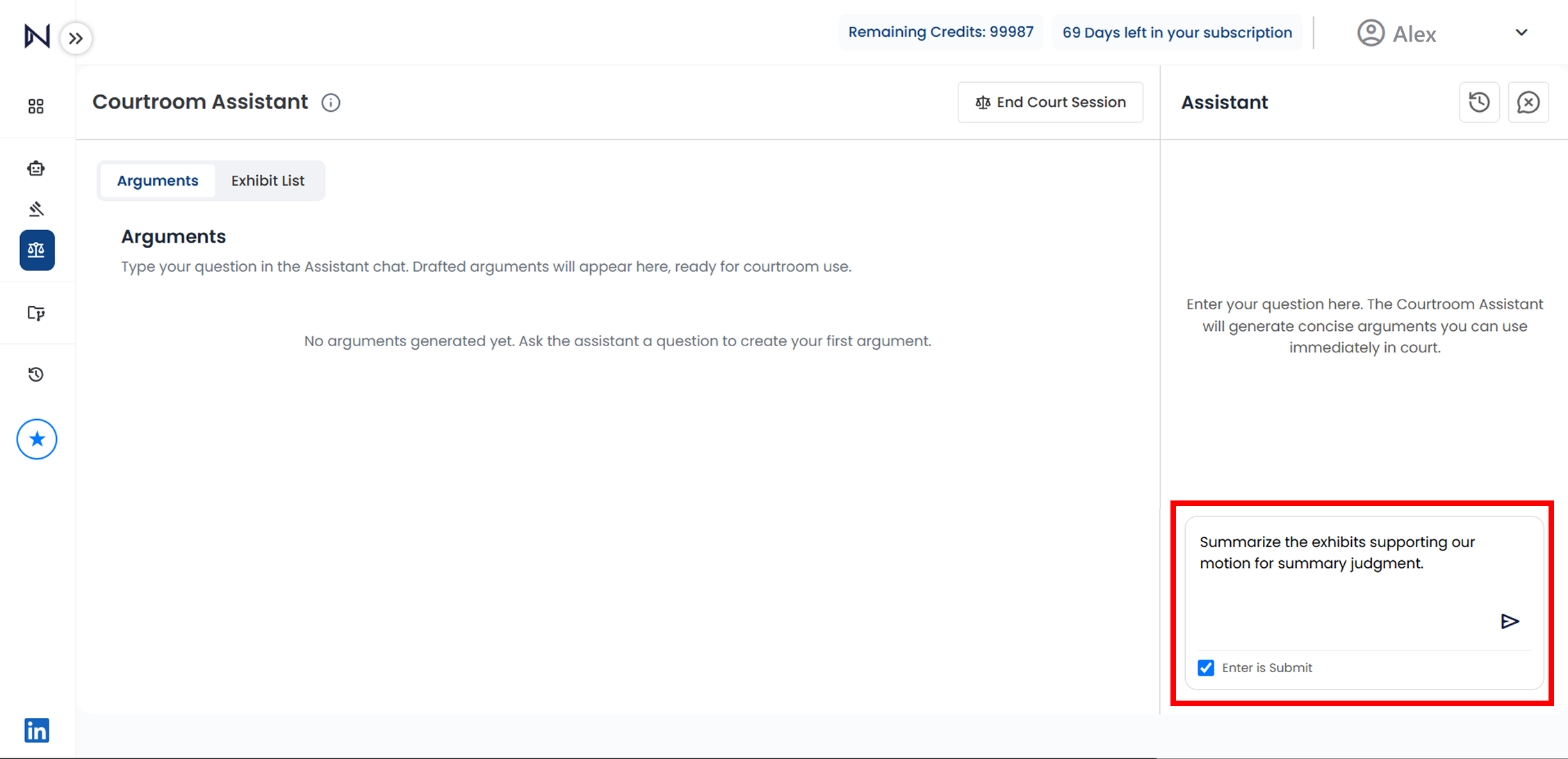
Ask Legal Questions in Real Time
-
During your hearing, type or speak naturally with Courtroom Assistant.
-
Example prompts:
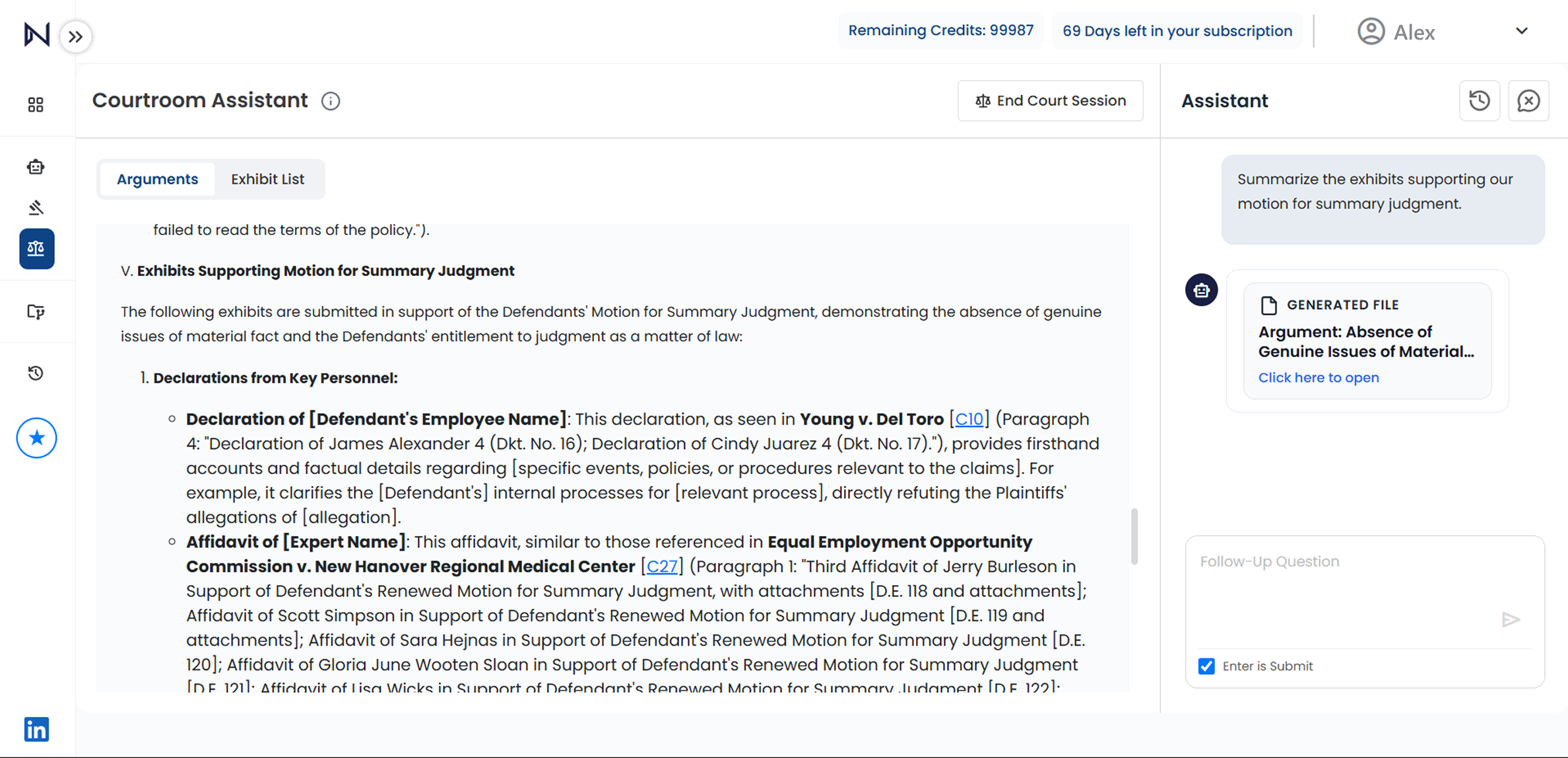
- • “Summarize the exhibits supporting our motion for summary judgment.”
- • “What’s the strongest counter to the objection on admissibility?”
-
-
Receive Contextual Arguments
- • Courtroom Assistant will analyze your exhibit list, prior strategy, and jurisdictional law to generate structured responses.
- • Each output includes relevant legal reasoning, citations, and evidence references
-
Refine, Adapt, and Apply
- • Use the generated argument to strengthen your oral submissions, written notes, or responses to opposing counsel.
- • Courtroom Assistant provides the analytical foundation, but you remain in full control of how the arguments are presented and delivered — ensuring every statement aligns with your legal strategy and professional judgment.
Post-Session: Updating and Continuing Strategy
-
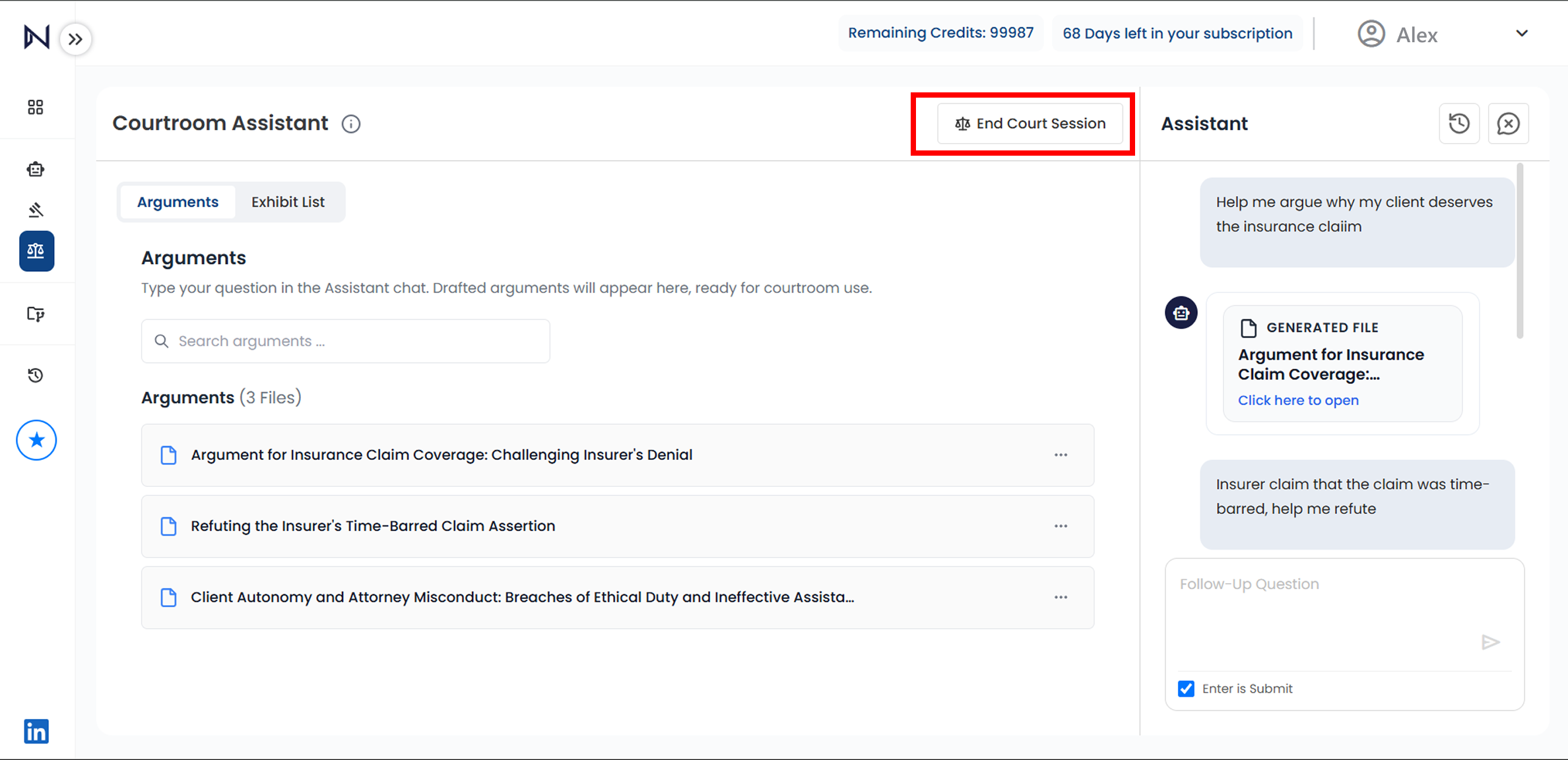
End the Courtroom Session
- When your hearing concludes, click End Session to save the session log and generated arguments.
-
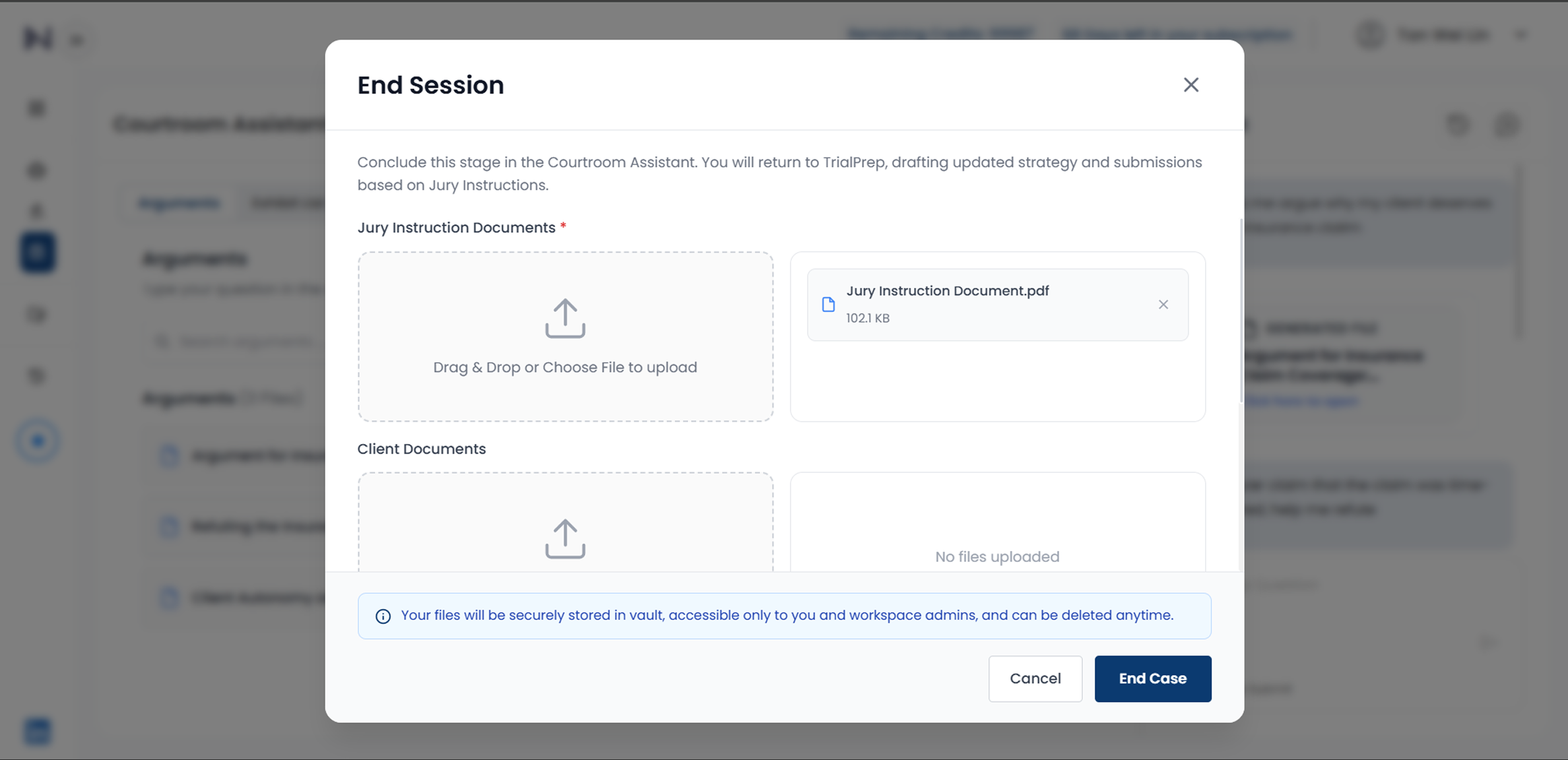
Upload Additional Materials
- • Jury Instructions documents (Mandatory)
- • Additional Evidence (Optional)
-
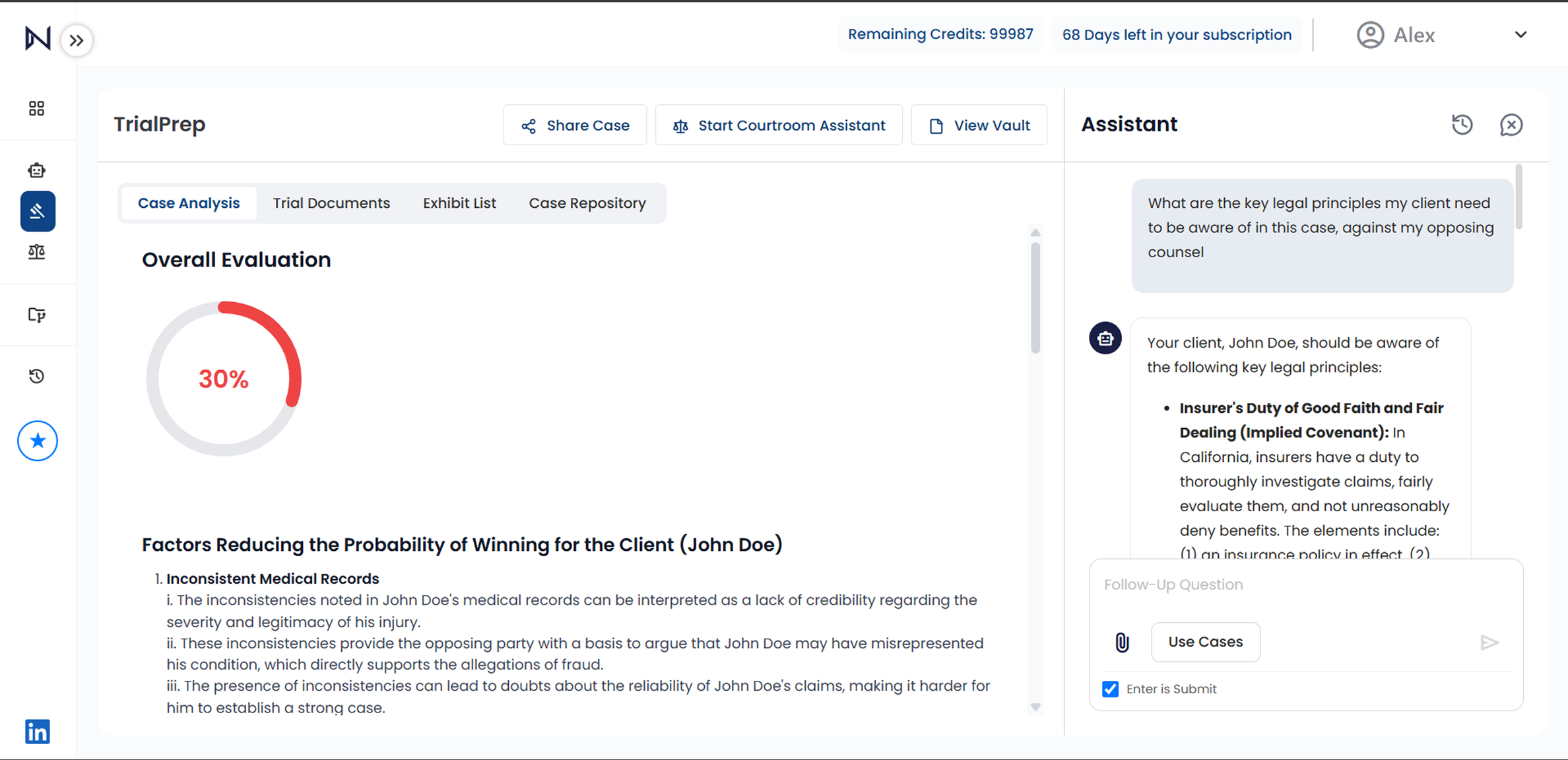
Return to TrialPrep and Prepare for the Next Session
- • Courtroom Assistant automatically synchronizes your new inputs with TrialPrep.
- • TrialPrep then re-analyzes your case to update your overall trial strategy and recommendations.
- • Repeat the process for subsequent hearings or trial days.